Use tasks
Use a task when agent work needs a record a human can read later.
A prompt is enough for a quick question. A task is better when the work has intent, a plan, a diff, checks, review comments, or handoff between people and agents.
A task board belongs to a TeaHouse, and a TeaHouse can have several boards. If you are looking at the wrong board, switch the TeaHouse or board before you create work. TeaHouse owners can add a board from New board in the board switcher. Where the board is not set up yet, Coldtea offers a setup flow and, where the integration is connected, an import path from Linear.
The board
Press Cmd+Shift+T (Ctrl+Shift+T on Windows and Linux) to open the tasks board. Press it again to leave and return to the workspace.
The board has two views:
- List view shows tasks as rows. This is the default.
- Board view groups tasks into columns by workflow state.
Use the toolbar to search, filter by workflow state, labels, or assignee, and switch the view. In board view you can drag a task between columns to change its workflow state. That updates the state; it does not prove the code is done. Keep workflow moves tied to review and checks, not optimism.
Create a task
Open the New task modal to create a task. A task has a title, a description, a workflow state, a priority, an assignee, and labels. Title is required.
Priority runs from no priority through urgent, high, medium, and low. Workflow states are defined per board and grouped into categories such as backlog, started, completed, and canceled, so the exact names on your board come from your team's setup.
A useful task is short, but it is not empty. Include:
- The problem or request.
- The expected outcome.
- Important constraints.
- Links, screenshots, or file paths when they matter.
- The checks that should run before review.
Do not write a task that says only "fix this." That just moves the guessing into the agent session.
Keep the scope small
One task should usually produce one reviewable stream of work.
Split the task when:
- The work has unrelated outcomes.
- Different agents need different branches.
- The checks are different enough to review separately.
- One part can ship without the other.
Do not split just to create busywork. Split when it makes review easier.
The task detail
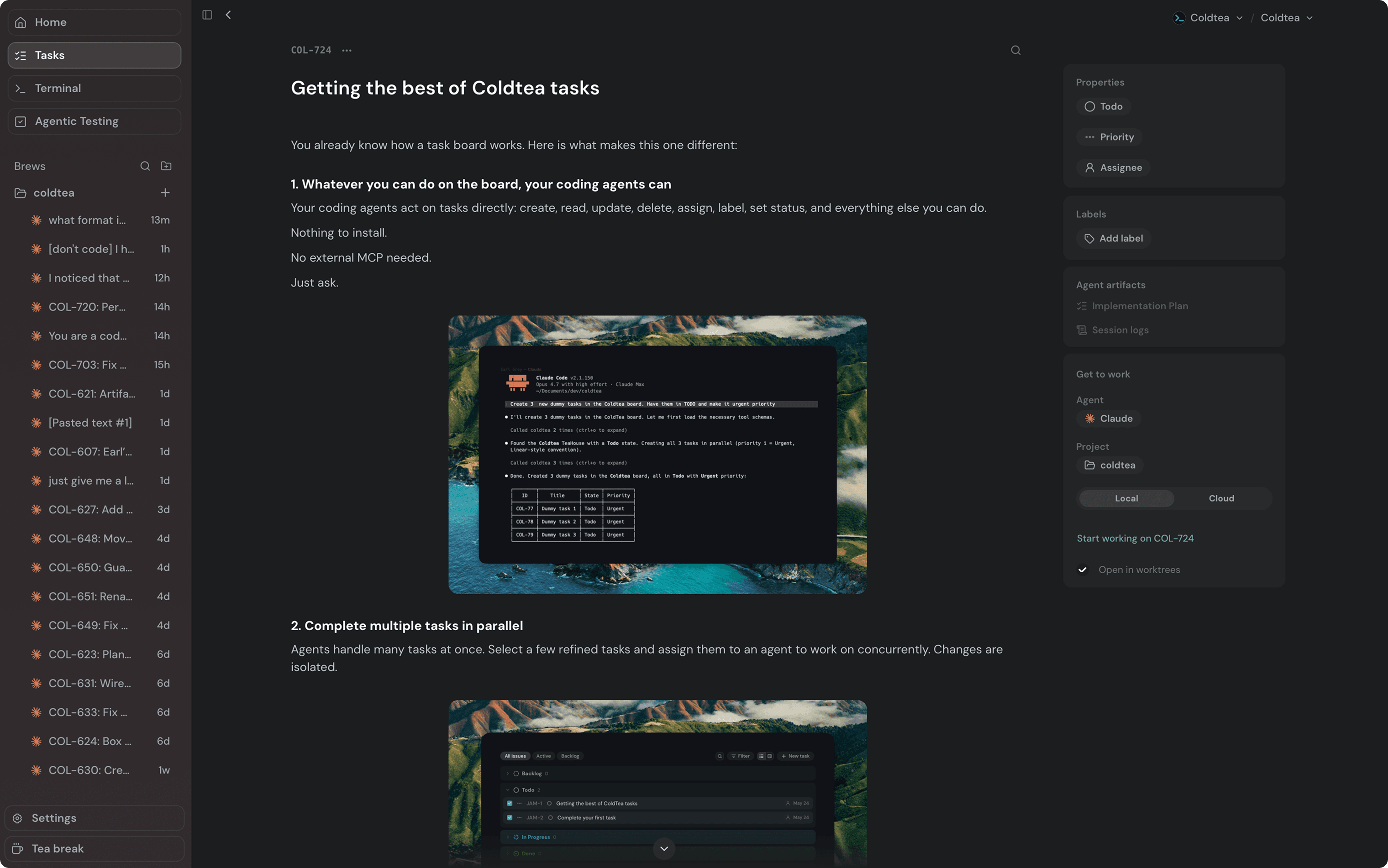
The task detail page holds everything tied to the task:
- The identifier, title, and description, all editable.
- A parent link when the task is a subtask, and its own subtasks below the description.
- Attachments you upload for context.
- A tab strip with Activity, Session logs, and Implementation plans.
- A properties sidebar with workflow state, priority, assignee, and labels.
- The Get to work panel, and cloud runs for the task.
Use the description for intent and constraints. Use plans for the route. Use logs for what actually happened. The tasks, plans, and logs page explains that record model, and labels covers the label picker.
Start work from a task
The Get to work panel starts agent work from the task. It has a Local and a Cloud mode.
For a local run, pick the agent and the project, then decide whether to open in a worktree. When you open in a worktree, Coldtea asks for a base branch and a pane name before it launches. For multiple selected tasks, prefer worktrees, because separate tasks usually need separate branches. Check the generated worktree name and base branch before launching.
Starting work opens the agent in a new tab and hands it the task. The agent picks up the task and links its pane to it, so the session groups under the task and the pane gets a label with the task's identifier and title. That link is what gives the plan, logs, and review a durable home. Read tasks, plans, and logs for what lands on the task afterward.
For a cloud run, the same panel switches to Cloud mode. Cloud runs need GitHub setup, repository access, and credentials before they are ready. See start a cloud run.
Use plans as a checkpoint
Ask for a plan before risky edits. When Claude Code proposes a plan, Coldtea captures it on the task. Read it for direction:
- Does it solve the task?
- Does it avoid out-of-scope areas?
- Does it name the right files?
- Does it name the right checks?
- Does it surface a risk before the diff exists?
If the plan is wrong, fix the direction before implementation. It is easier to change course before files move. To read a plan and send feedback, see plan review.
Use logs for handoff
A good session log says what happened. "Complete" on its own is not a log.
Useful logs mention:
- Files changed.
- Commands run.
- Checks that failed or were skipped.
- Review comments addressed.
- Follow-up still needed.
Avoid vague logs like "implemented successfully." That gives reviewers nothing to trust.
Close the loop
When the work is done, leave the task in a state that matches reality. Done when the change is reviewed and no required work remains. In progress when another pass is needed. Blocked when a real external dependency is stopping the work. Canceled when the branch or direction is intentionally dropped.
The task should tell the truth even when the agent sounded confident.
Next: tasks, plans, and logs for the model, or review agent work for the review order.