Runs and results
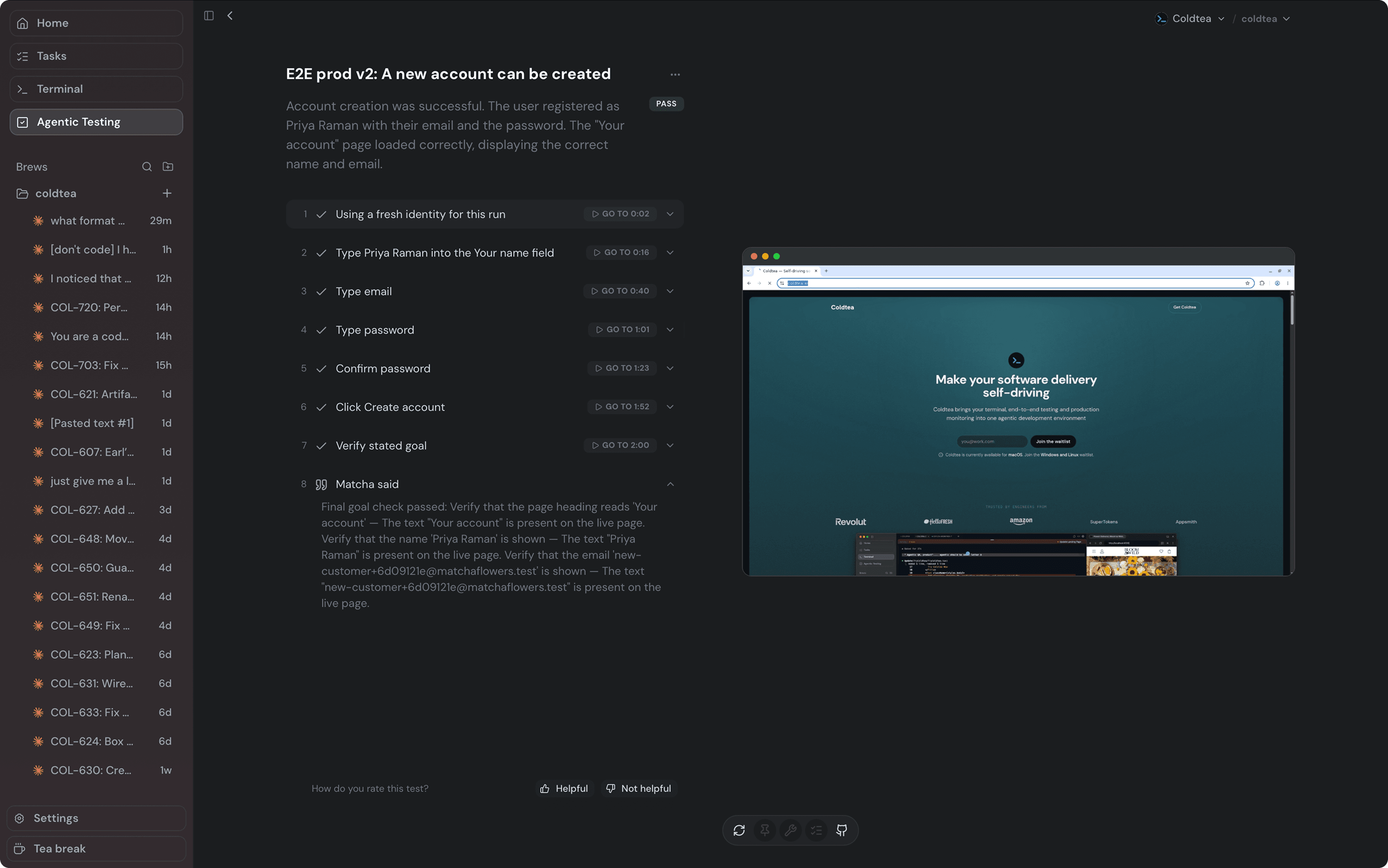
A run is one execution of a QA scenario. It moves through a set of statuses, ends with a verdict or a "couldn't run" reason, and carries the evidence Matcha collected along the way. This page is how you read one.
Run status
A run reports one of these statuses:
- Queued: admitted, waiting for its turn or a free device.
- Running: driving the app.
- Stopping: a stop was requested and the run is winding down.
- Completed: the run finished and carries a verdict.
- Failed: the run ended without a verdict. A "couldn't run" run lands here.
- Canceled: someone stopped the run.
A running run may be waiting rather than driving: for a free device or browser, or for another run signed into the same test user to finish. Matcha can also pause on purpose to wait out something slower than a click, such as a deployment, a build, or a webhook, then pick the flow back up. It reads as running throughout.
Verdict versus "couldn't run"
A completed run carries a verdict:
- Pass: the flow did what you asked. A flow that correctly refuses still passes.
- Fail: Matcha observed a real defect in the app.
- Warning: the flow worked, but something is worth your attention.
A run that never got a fair shot at the app carries no verdict. Coldtea marks it "Couldn't run" and shows the reason, and keeps it out of your pass and fail counts. The reasons are:
- Browser, device, or provider infrastructure failed.
- The QA budget is exhausted.
- No device or browser slot came free.
- A bot wall or access barrier hid the app under test.
- The test's credentials were refused before the flow began.
- Matcha could not drive the flow itself.
Read a fail as a claim about your app, and a "couldn't run" as a claim about the run. Fix the setup and run it again before treating a "couldn't run" as a product bug.
Steps
A run is a list of ordered steps. Each step has a title, a status, and an observation of what Matcha saw. A step is queued, running, passed, a warning, or broken. A broken step can also show that Matcha is retrying around it, or that a later attempt recovered the flow, so a stumble Matcha caught and fixed itself does not read as your app failing.
The step list is the flow a person would walk. Matcha's own bookkeeping between steps stays out of it.
Evidence
A run collects evidence you can open:
- Screenshots, tied to the step they came from.
- A frame replay: a recorded playback of the run assembled from captured frames.
- A video recording, when one is available.
Activity
Alongside the steps, a run carries an Activity panel with two tabs:
- Tools: every action Matcha took, each with how long it took and an expandable input and output, or the error when it failed. This is where you see it create a test inbox, sign in, or wait on something external.
- Console: the browser console output from the app under test, filterable by level and searchable by text. Use it to tie a failure to what the app logged.
Live view and replay
While a run is live, you can watch it, and while a step runs you can follow the agent's thinking. Web runs expose a live browser view. Mobile runs expose a read-only device frame stream. Once the run completes, the live view gives way to the recording, so you can replay what happened.
Ratings
You can rate a completed run helpful or not helpful. Coldtea keeps the rating with the run and uses it to improve Matcha. Marking a passed run as not helpful is the most useful signal you can send us, because a wrong pass is the failure that costs you most.
Reading runs through an agent
You can ask an agent to list recent runs, read one run in full with its steps and summary, or stop a run that is still going. See MCP and local API for the QA tools.
Related
- Share a run: hand a finished run to someone outside the app.
- PR reporting: how runs report back on a pull request.