Panes and tabs
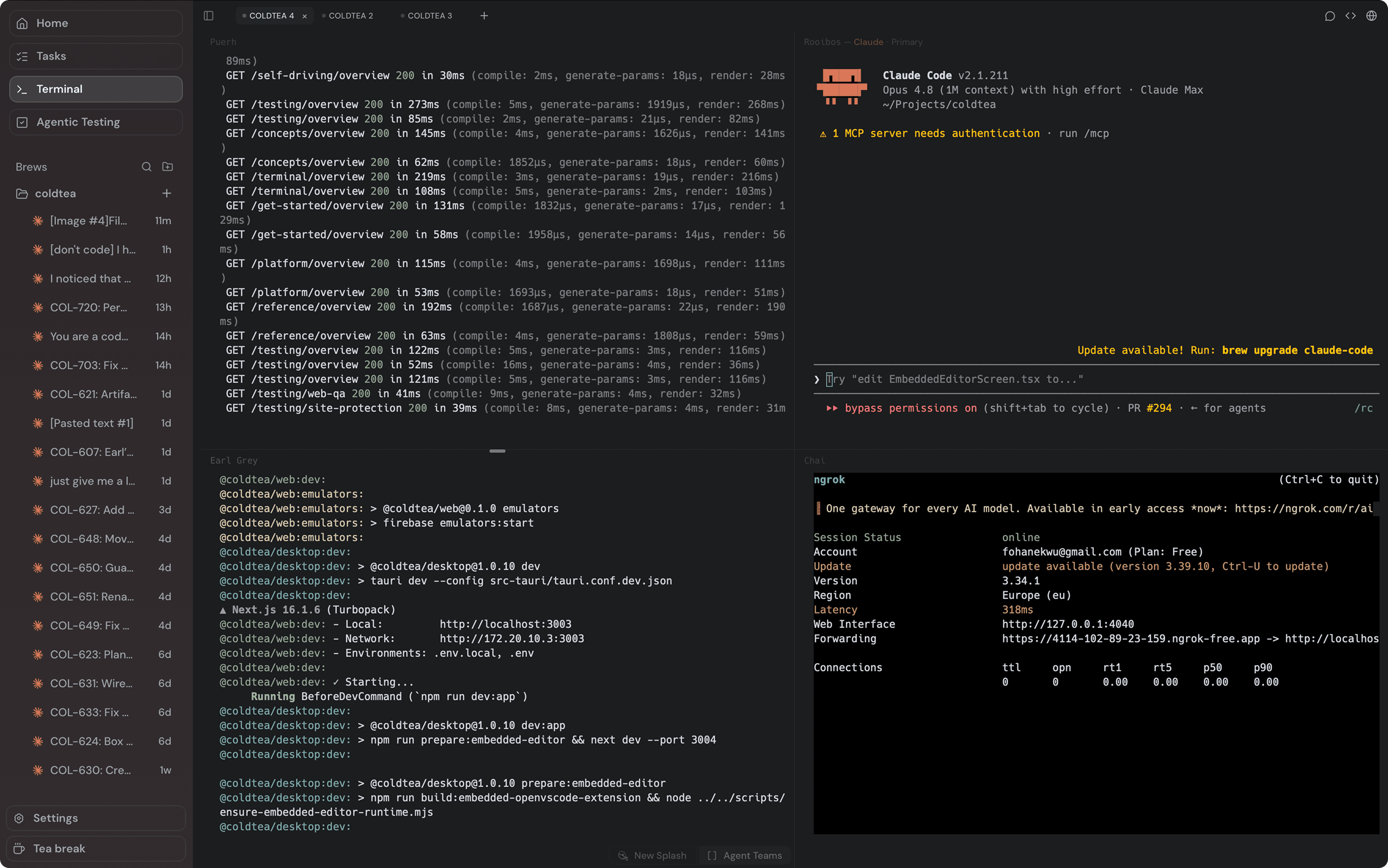
Tabs are separate lanes of work. Panes are the split views inside a tab. Use tabs to keep unrelated work apart, and splits when you need two things visible at once, such as an agent beside a dev server.
For the concepts behind panes and tabs, read projects, brews, panes, and tabs. This page is the mechanics.
Tabs
- ⌘T on macOS, or Ctrl+T on Windows and Linux, opens a new tab.
- ⌘W on macOS, or Ctrl+W, closes the active pane or tab.
- ⌘1 through ⌘9 switch to a tab by position. Tab switching by number is macOS only.
The plus button at the end of the tab strip also opens a new tab, and its menu offers to start a worktree in the new tab.
Splits
Split the active pane from the pane context menu (right-click the pane):
- Split pane right
- Split pane left
- Split pane down
- Split pane up
On macOS, two splits have keyboard shortcuts: ⌘D splits right and ⇧⌘D splits down. Split left and split up are available from the context menu.
A split pane keeps running its own agent or shell. The focused pane is the one that gets your keystrokes, so click a pane before you type.
Pane context menu
Right-click a pane to open its context menu. Depending on the pane, it offers:
- The four split directions.
- Label pane.
- Worktree actions when the pane can start or manage a worktree.
- Copy, add comment, and paste.
- Close pane.
Pane labels
A label gives a pane a name and a color so you can tell your panes apart at a glance. Choose Label pane from the context menu, type a name, and pick one of six colors: steeped teal, sage, ceramic, amber stain, red, or violet. Steeped teal is the default. Clear the label from the same modal to remove it.
Pane labels are also a concept that agents and Coldtea can read; this page covers setting them by hand.
For the window shell around the panes (the sidebar, the right dock, overlays, and the project and TeaHouse switchers), see the workspace overview.
Next: the composer for the prompt box over a pane.