Comments and annotations
A comment is how you point an agent at an exact spot: a line in the terminal, a line in a diff, a passage in a plan, or a place on a live browser page. You mark the spot, write what you mean, and Coldtea sends it to the agent with the location attached. This is more precise than retyping "the third error" or "that button" into a prompt.
Comments queue up as you add them. When you are ready, you send the whole batch to the agent at once.
Comment on a terminal selection
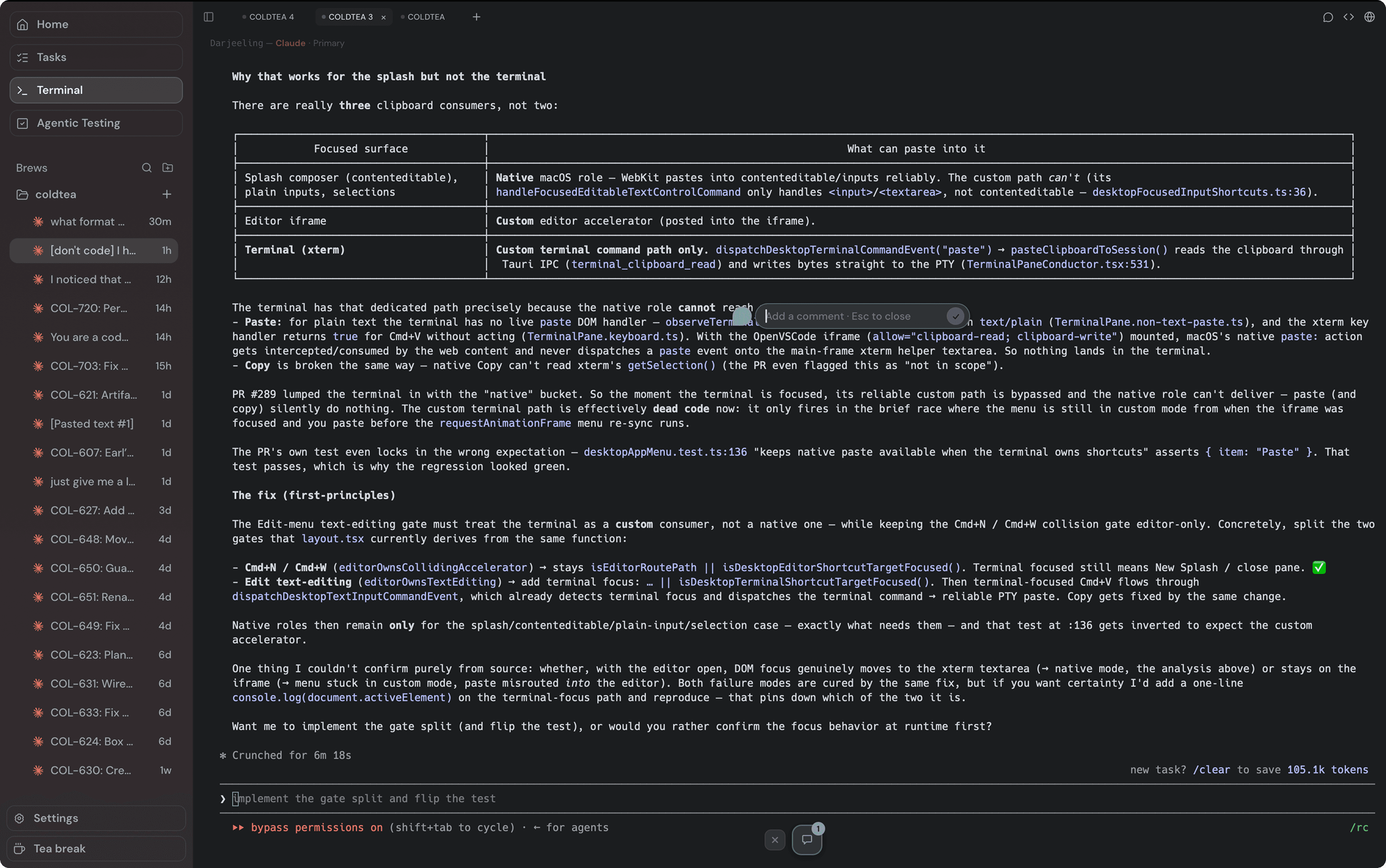
Select text in a terminal pane and press Cmd+Option+M (Ctrl+Alt+M on Windows and Linux) to comment on the selection. You can also comment without a selection: Cmd+Shift+click (Ctrl+Shift+click) drops a comment at the point you click. Plain Cmd+click stays free to open links.
The terminal pane's context menu has the same action under "Add comment", and shows both shortcuts. Write the comment, then send it with Cmd+Enter.
Comment on a diff line
In the editor's diff, comment on a specific line. Put the cursor on the line and press Cmd+Option+M (Ctrl+Alt+M), or right-click the line and choose Add comment. A comment records which file, which side of the diff (the original or the modified version), and which line, so the agent knows exactly where you mean. You can comment on one line or on a selected range.
Diff comments collect in a tray. Send the batch with the tray's Send comments button, or clear it.
Comment on plan text
When you review a plan, select any passage and click Comment to leave feedback on that part of the plan. Plan comments go back to the agent as part of the plan review, not through the annotation button below. See plan review.
Annotate a live browser page
You can annotate a page in Coldtea's browser. The gestures match the rest of the app: Cmd+Shift+click (Ctrl+Shift+click) drops a comment at a point on the page, and Cmd+Option+M (Ctrl+Alt+M) comments on a selection. Each annotation shows as a bubble on the page.
Browser annotations send to the terminal pane you have focused, so point the agent you want at the page before you send.
Send the batch, or discard it
Queued terminal and browser comments share one send control near the bottom of the focused pane. It shows how many comments are waiting and sends the whole batch in one action. If a send fails, you can retry it from the same place, and the discard button next to it drops the queue without sending.
When the send succeeds, the queue empties and the control disappears. There is no separate confirmation: an empty queue is the signal.
Resolving annotations
On a live browser page, an agent that reads your annotations can mark each one resolved once it has acted on it, which removes the bubble from the page. That keeps the page showing only the feedback still open.
Terminal and diff comments do not carry a resolved state. They leave the queue when you send them or when you discard them.